How to Use MAT
Complete guide to mastering the Meeting Assistant Tool. Follow our step-by-step instructions to make the most of every feature.
Step 1 of 10
Getting Started
Welcome to MAT! Learn how to download, install, and create your account.
Download and Install MAT
MAT is available on three platforms:
Android:
- Open Google Play Store on your Android device
- Search for "Meeting Assistant Tool" or visit the direct link
- Tap "Install" to download the app
- Once installed, tap "Open" to launch MAT
iOS (Apple):
- Open the App Store on your iPhone or iPad
- Search for "Meeting Assistant Tool" or visit the direct link
- Tap "Get" or the download icon
- Once installed, tap "Open" to launch MAT
Huawei:
- Open AppGallery on your Huawei device
- Search for "Meeting Assistant Tool" or visit the direct link
- Tap "Install" to download the app
- Once installed, tap "Open" to launch MAT
Creating Your Account
Option 1: Email Registration
- On the Sign In screen, tap the "Register" tab
- Enter your first name (required)
- Enter your last name (required)
- Enter your email address (required)
- Create a password (required) - use the eye icon to toggle visibility
- Confirm your password (required)
- Check the box to agree to MAT's privacy policy and terms of service
- Tap "Register" to create your account
Option 2: Social Login
- On the Register screen, scroll to the "Social login" section
- Tap the Apple logo button to sign in with your Apple ID
- Follow the prompts to authenticate with Apple
Signing In
- Open the MAT app
- Enter your email address in the "Enter email address" field
- Enter your password in the "Enter password" field
- Use the eye icon to toggle password visibility if needed
- Tap "Sign in" to access your account
Forgot Password?
- Tap "Forgot my Password" on the Sign In screen
- Follow the instructions sent to your email to reset your password
Understanding the Main Dashboard
After signing in, you'll see the "Meetings" screen:
- Search Bar: Use this to quickly find specific meetings
- View Past Meetings: Tap this button to see completed meetings
- Meeting Cards: Each card shows:
- Meeting title
- Description
- Creator email
- Date and time
- Quorum status (if applicable)
- Meeting status (Scheduled, In Progress, etc.)
- Floating Action Button: The circular button with a "+" icon in the bottom right lets you create a new meeting
- Notifications: The bell icon in the top right shows pending notifications (red badge indicates count)
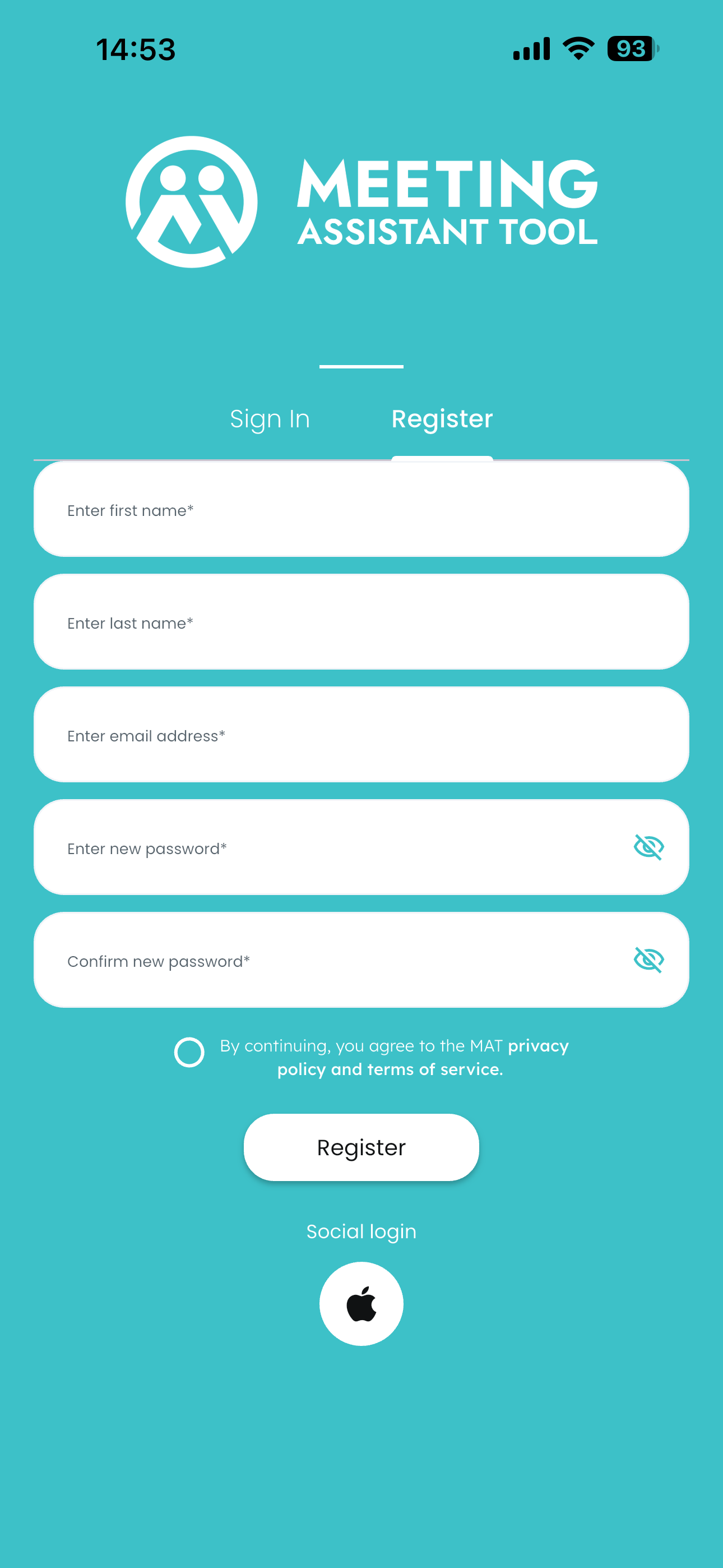
Register Screen
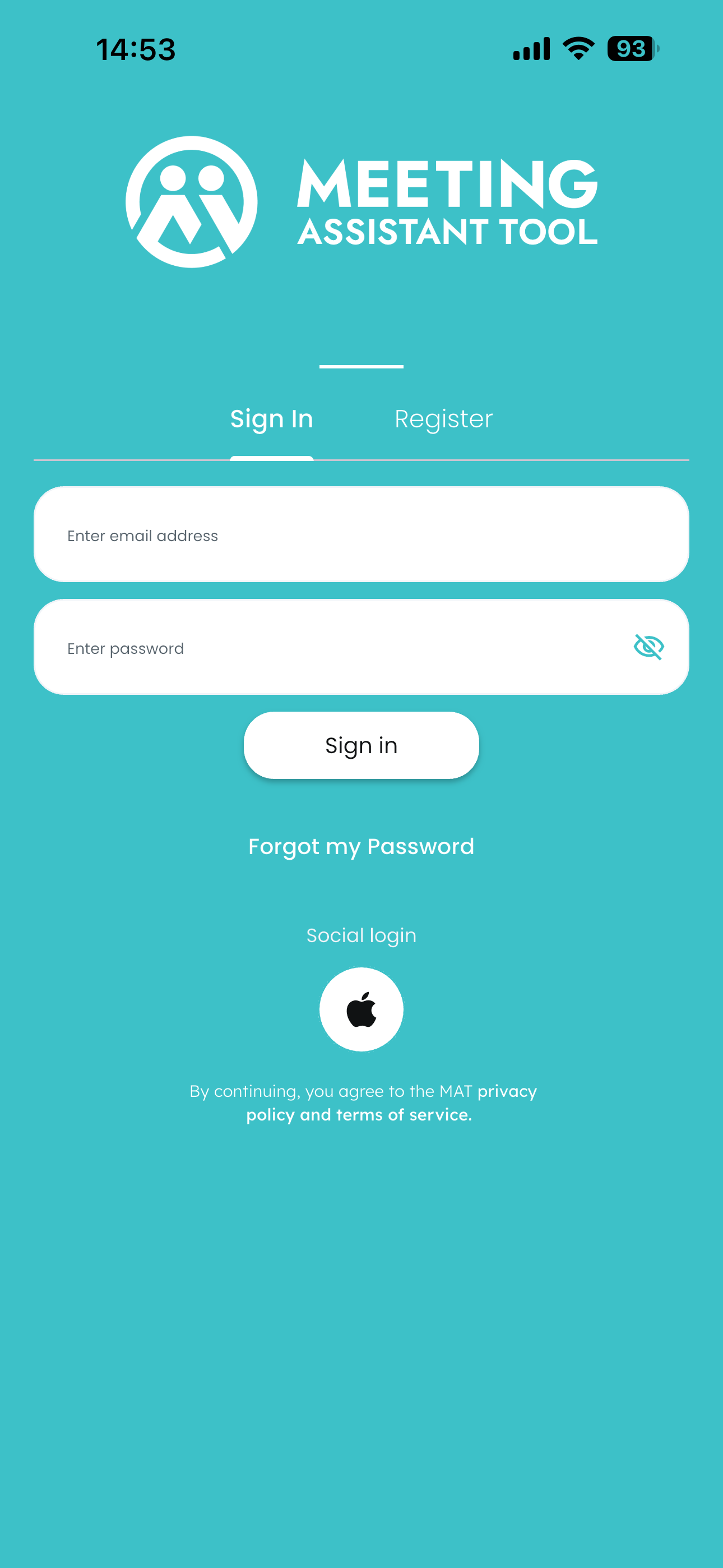
Sign In Screen
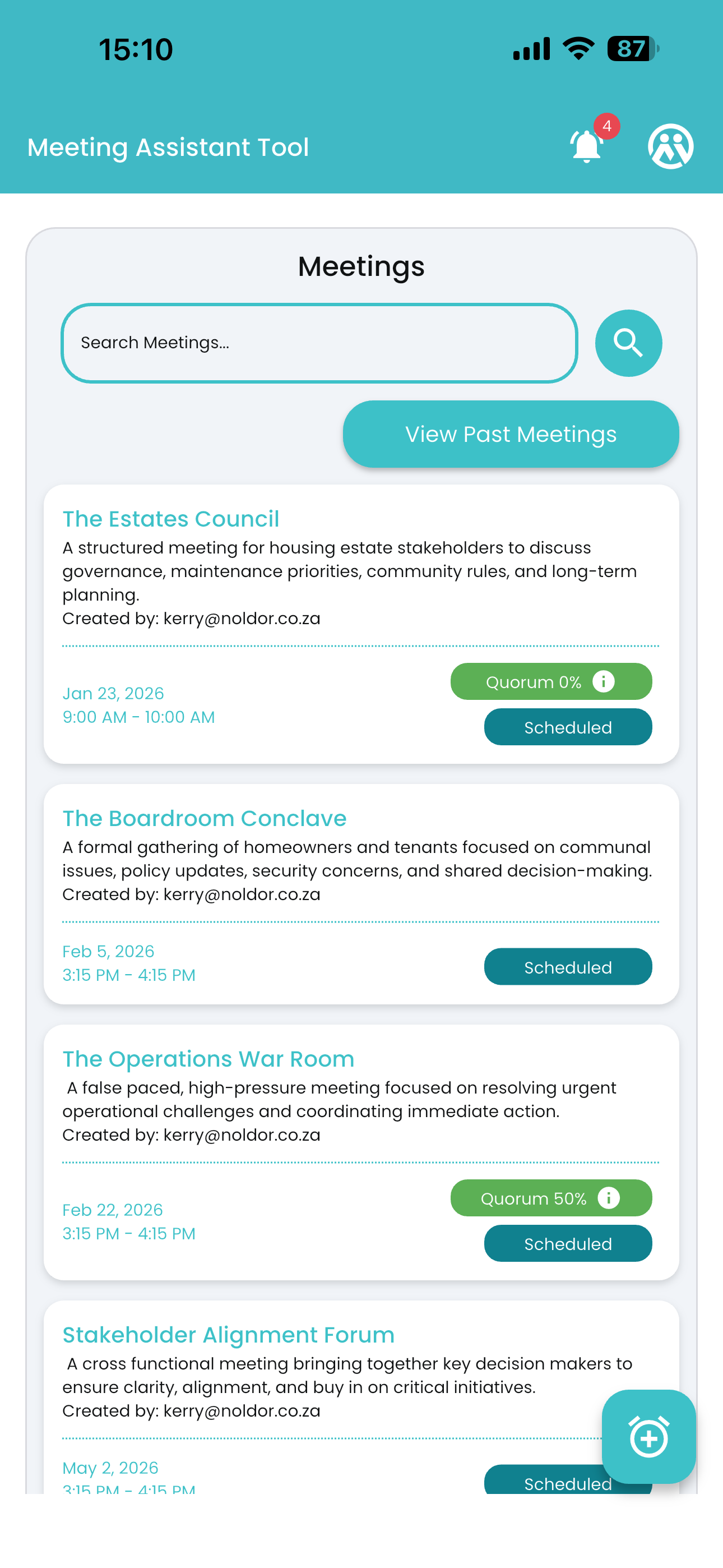
Meetings Screen